Electric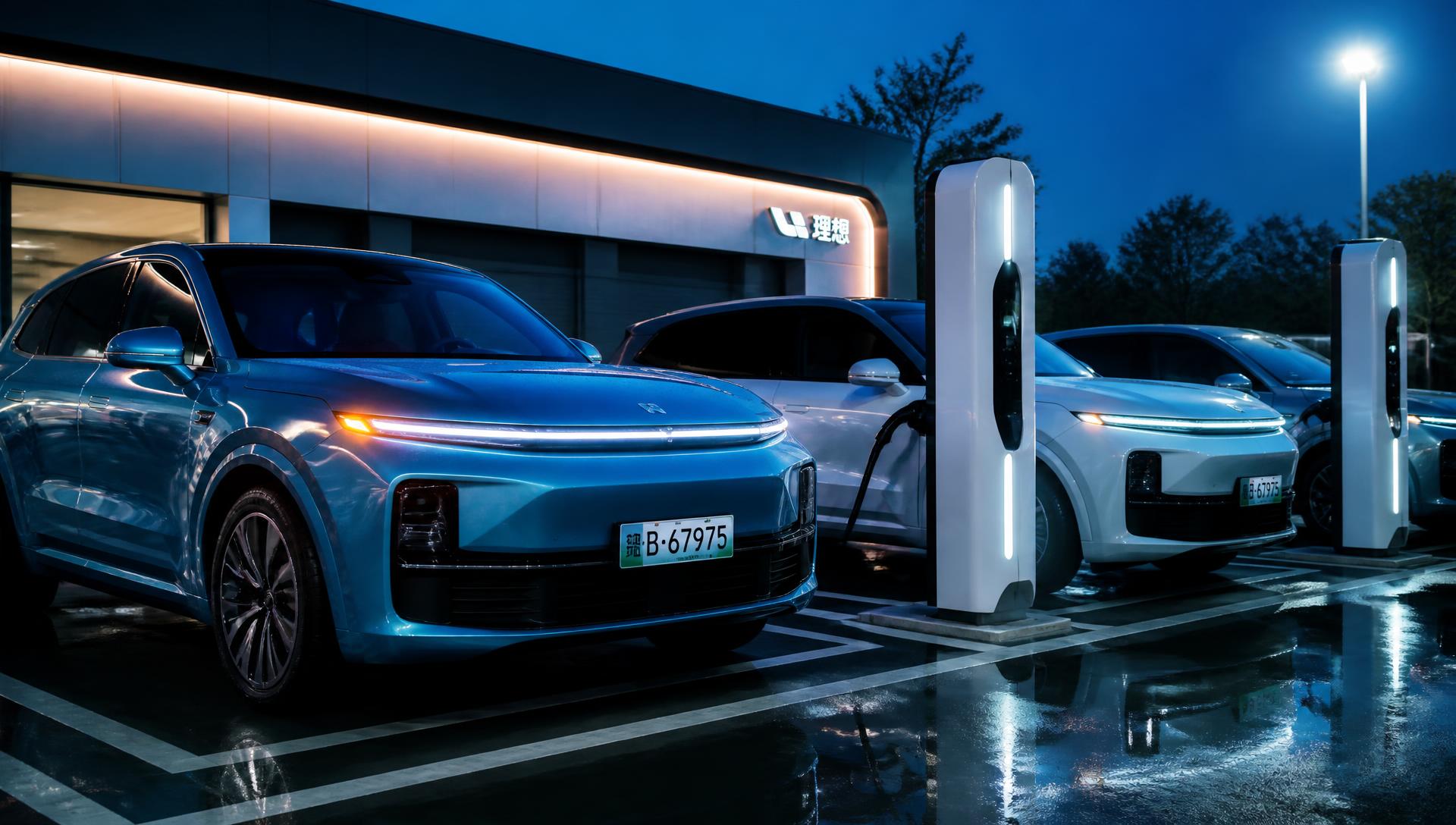
Are Chinese Electric Cars Worth Importing in 2026?
Range, battery warranty, spare parts and resale value — an honest look at what happens after the car lands.
Read the guide →
Japanese, Chinese and European models — from $3,900 kei and city cars and kei hatchbacks to V8 SUVs and supercars. Inspected, mileage-verified and financed from 12 to 72 months with zero hidden fees.
Kei cars, city hatchbacks, family sedans, Chinese EVs, 7-seat SUVs, pickups and supercars. Every unit is auction-graded with an English inspection sheet. Tap any car for full specs and colour options.
Independent auction grading plus our own mechanical, chassis and paint report before any payment.
From 10% down, 12–72 months, no local bank account needed. Early payoff is always free.
RoRo and container shipping with tracked bills of lading to 190+ countries.
Funds are only released after your inspection sheet and shipping documents are approved.
No local bank required. We finance buyers in Africa, the Middle East, Asia, Europe, the Caribbean and beyond.
Choose any model from our stock and request a free quote landed at your nearest port.
Send an ID and proof of income. Most applications are approved within 24 hours.
From 10% down. Bank transfer, card or crypto — then we ship within 7 working days.
Fixed monthly installments in USD or EUR for 12–72 months. Early payoff is always free.
We book space with the world's largest ocean carriers and courier networks, so your vehicle and documents move together.
Move the sliders to see the exact monthly payment for any car in our stock.
"Bought a Corolla Hybrid on 60 months. Paperwork was in English, the car landed in Mombasa exactly as photographed."
Daniel O.Nairobi, Kenya"I wanted a small cheap car for my wife. The kei hatchback cost less than a used bike here and the installment was $89 a month."
Amina R.Casablanca, Morocco"Ordered a Chinese electric SUV. Delivered to Jebel Ali in 26 days with full charging kit. Excellent communication."
Khalid A.Dubai, UAEEverything a first-time importer needs to know before paying a deposit — written by our own export desk in Guangzhou.
Every Japanese unit carries a grade from 1 to 6 plus an interior letter grade from A to D.
We send the original sheet with an English translation before any payment.
Our listed prices are FOB (vehicle loaded at the port of departure). Your landed cost adds:
Ask us for a written CIF quote to your nearest port before you commit.
Import age limits differ by country: Kenya allows units up to 8 years old, Tanzania 10, the UAE 10, Chile and Peru restrict right-hand drive entirely.
Tell us your destination first and we will only show you vehicles that clear your local rules.
We recommend container shipping for anything above $25,000.
Never send funds to a personal account. Our invoices are issued to a registered company account, and every deal can be routed through escrow.
Financed buyers pay the deposit only after the inspection report is approved in writing.
Sailing times from Guangzhou, Nansha and Yokohama. Freight is indicative for a single sedan on RoRo.
| Destination port | Region | Transit | RoRo from | Steering |
|---|---|---|---|---|
| Jebel Ali | UAE | 12–16 days | $690 | LHD / RHD |
| Mombasa | Kenya | 25–32 days | $880 | RHD |
| Dar es Salaam | Tanzania | 28–35 days | $910 | RHD |
| Durban | South Africa | 26–34 days | $950 | RHD |
| Lagos (Tin Can) | Nigeria | 32–42 days | $1,080 | LHD |
| Casablanca | Morocco | 30–38 days | $1,040 | LHD |
| Karachi | Pakistan | 14–20 days | $720 | RHD |
| Colombo | Sri Lanka | 12–18 days | $700 | RHD |
| Georgetown | Guyana | 35–45 days | $1,290 | RHD |
| Santos | Brazil | 38–48 days | $1,350 | LHD |
Three short films that show what actually happens to an exported car between the auction hall and your port.
Eleven in-depth reads on installments, ocean freight, customs, model buying guides and updated 2026 prices — no fluff, real numbers from our own export desk.

Deposits, interest, paperwork and the four mistakes that make an approval take three weeks instead of two days.
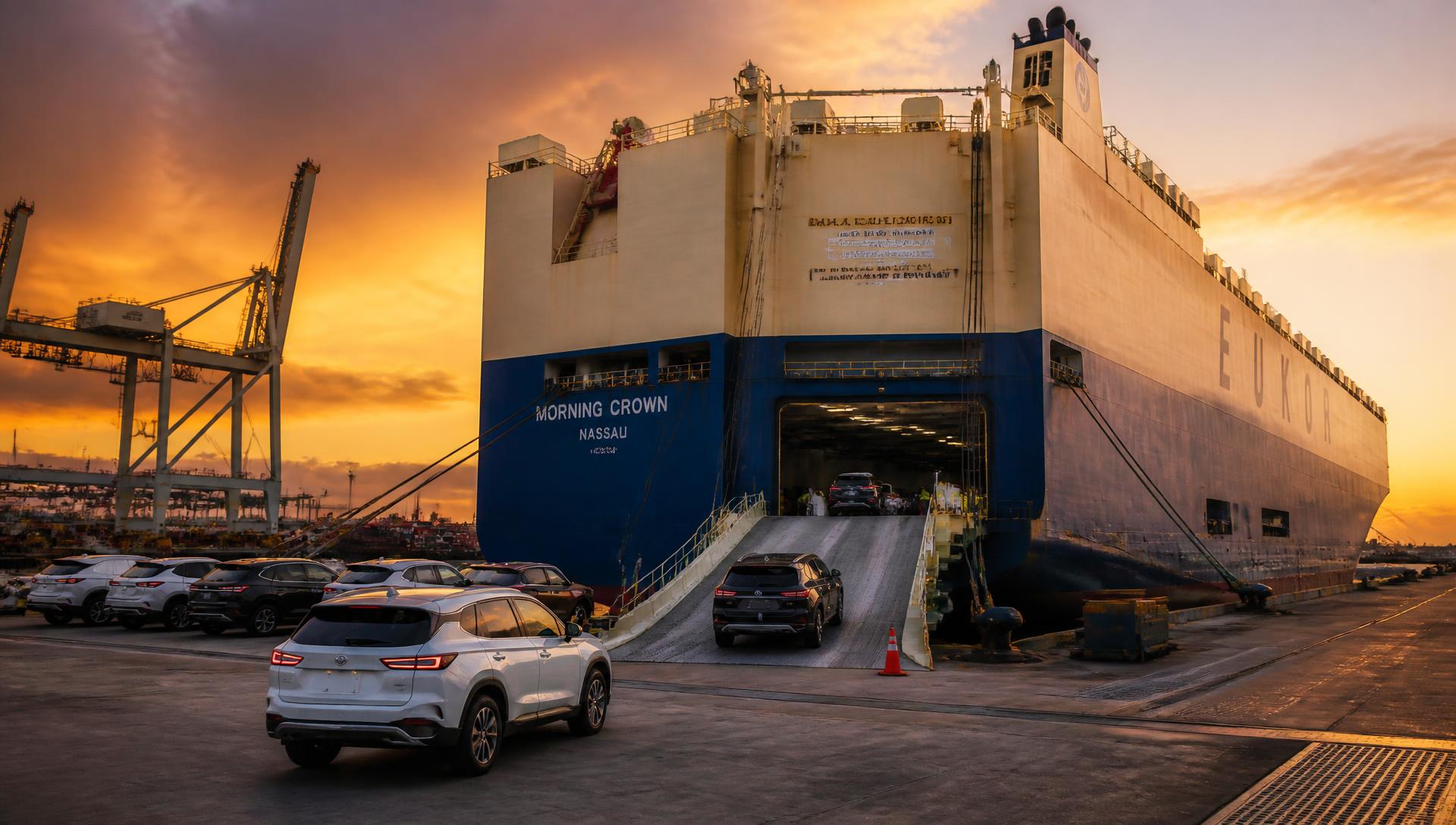
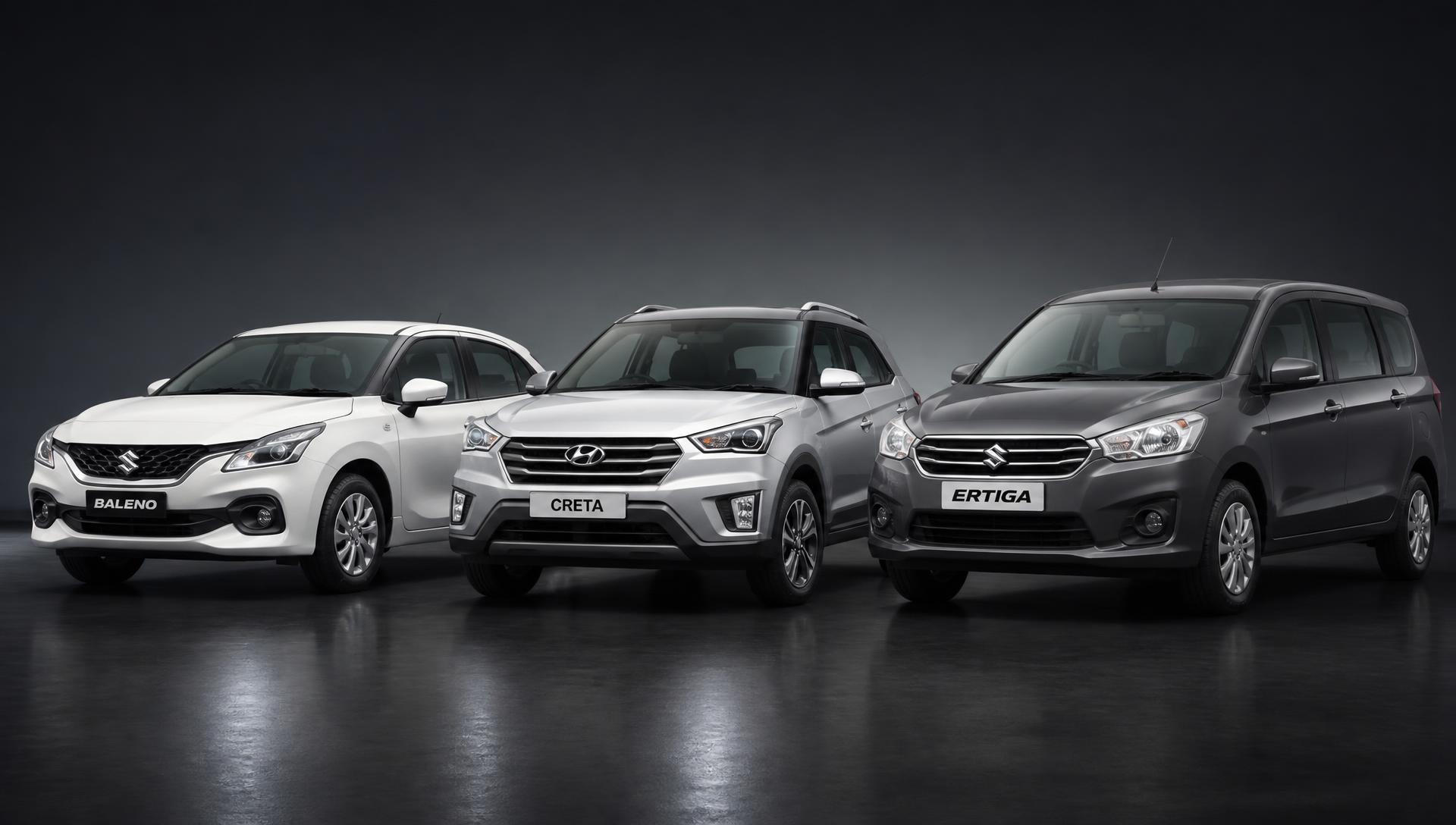

Range, battery warranty, spare parts and resale value — an honest look at what happens after the car lands.
Read the guide →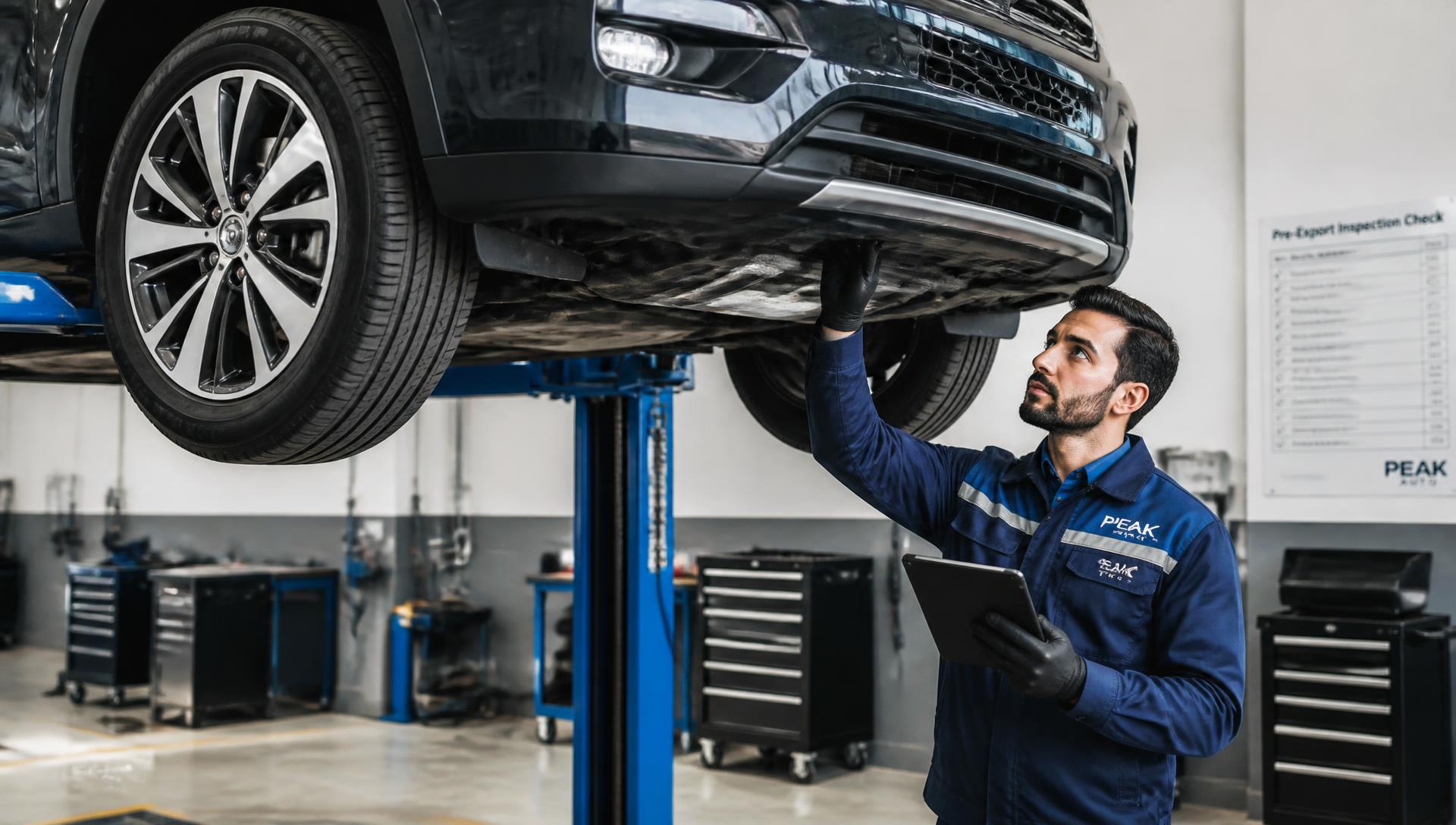
What we check before a car is allowed on the ship, and how to read an inspection sheet like a professional.
Read the guide →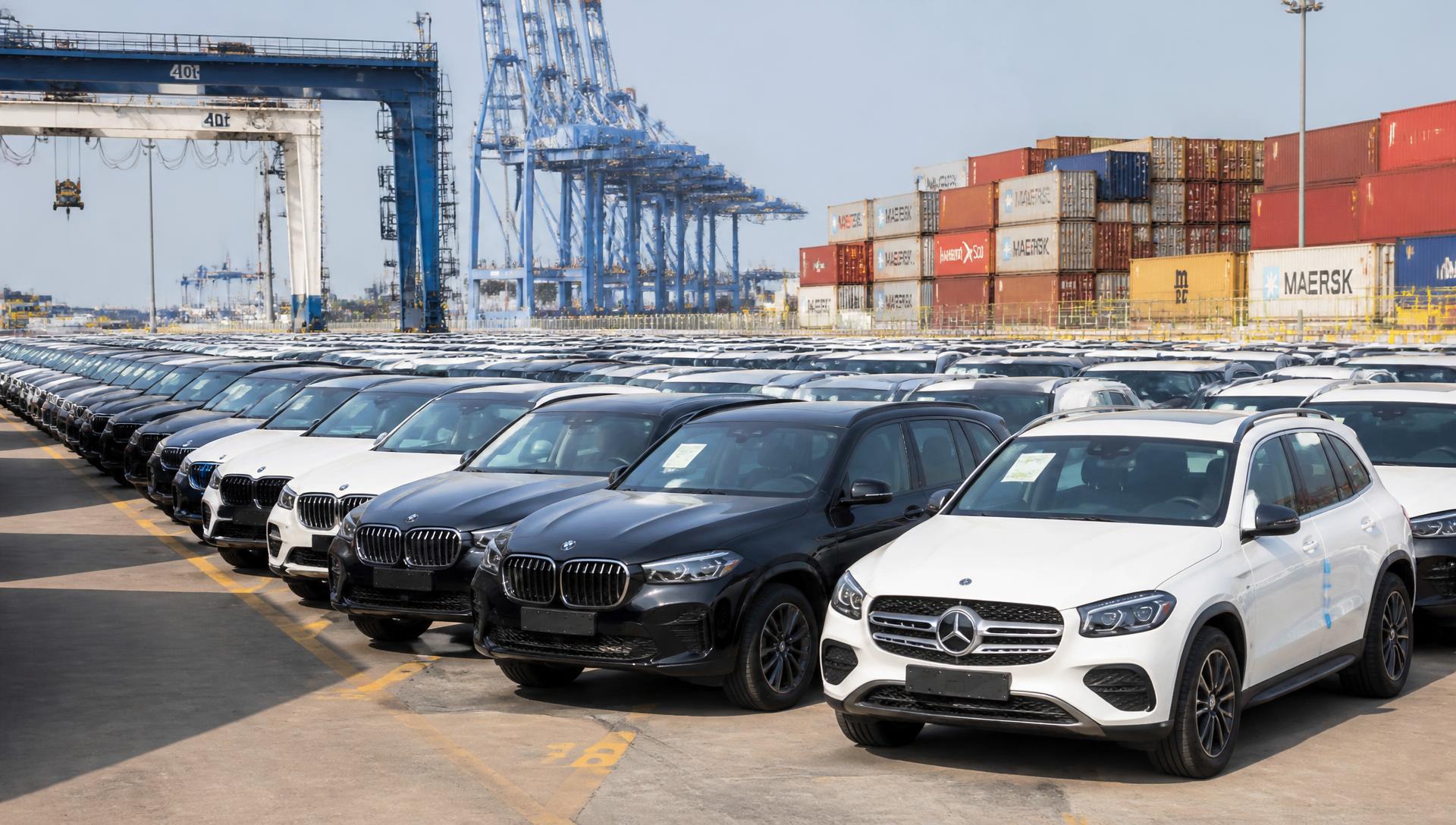
The documents that must travel with your car, and how buyers get hit with storage charges they never expected.
Read the guide →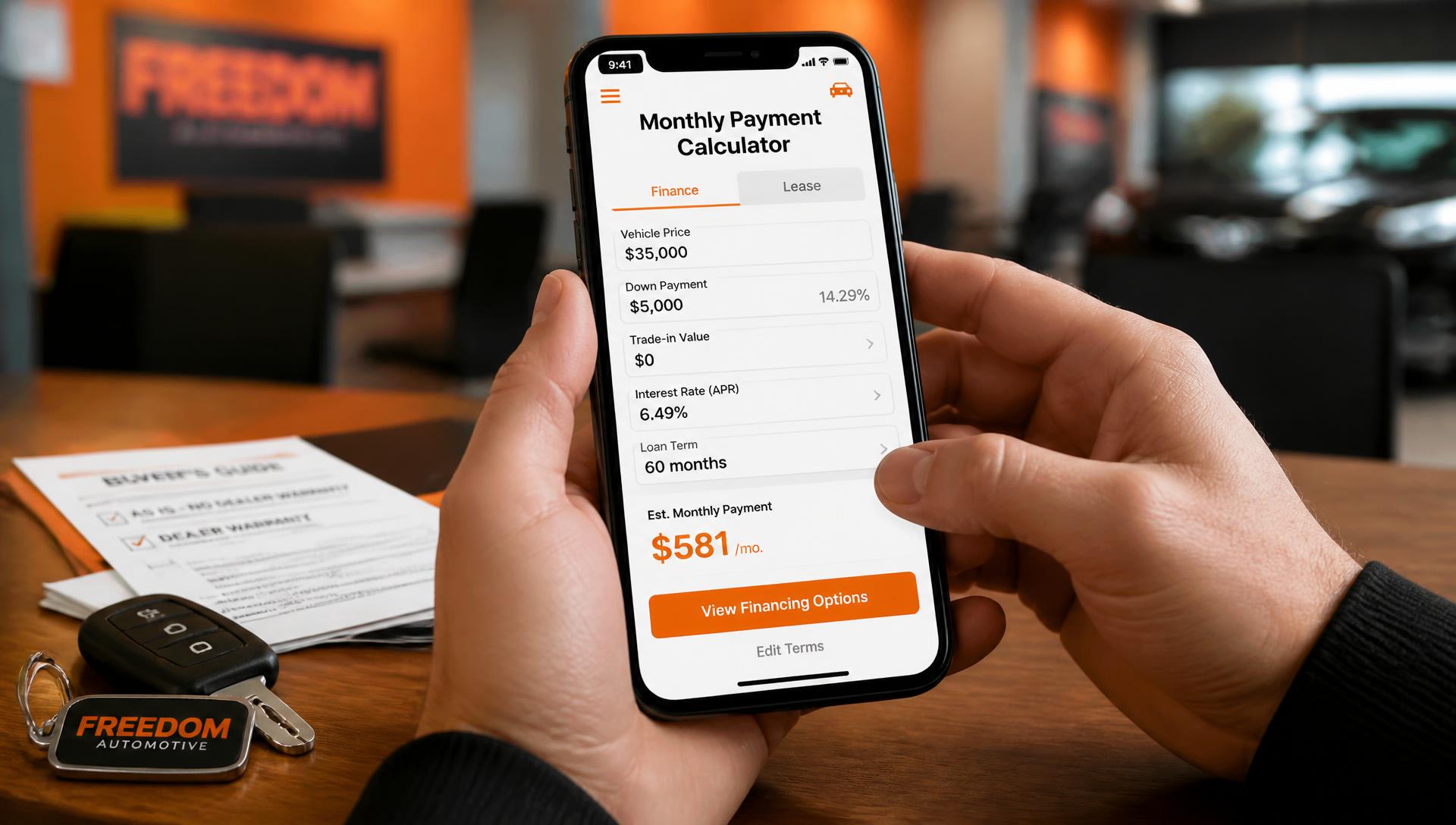
Real FOB price ranges for the models we ship most, refreshed every month with auction and freight movements.
Read the guide →Gearbox health, transfer case whine, service intervals and the price gap between a clean car and a cheap one.
Read the guide →Rust points, 2JZ myths, modified-car red flags and how the two generations differ once they land.
Read the guide →Timing belt history, snap-ring gearboxes, aluminium bodywork repairs and realistic running costs.
Read the guide →Purchase price, freight class, parts availability and yearly cost of ownership, compared honestly.
Read the guide →Our global export headquarters and 8,000 m² vehicle yard are located in Guangzhou, China — minutes from Nansha Port.
Walk-in inspections welcome. Container loading and pre-shipment photos are done on site every working day.
Real people, real stock. Tell us the model you want and the country you are in, and we send a written quotation with the cash price, the installment plan and the full shipping cost to your nearest port.
The more detail you give us — model, colour, budget and destination port — the more accurate your quotation will be.
An independent vehicle exporter based in Guangzhou, China, shipping inspected Japanese, Chinese and European cars to private buyers and small dealers in more than 190 countries.
JDM Motors began in 2011 as a two-person buying office at the Japanese auto auctions. Our founders were tired of watching overseas buyers pay for cars they had never seen, described in one line of text, with a shipping bill that doubled after the invoice was signed. We built the opposite of that: every vehicle we list is physically inspected, photographed and graded before it is offered, and every quotation states the cash price, the installment schedule and the freight cost to your port on the same page.
We buy at Japanese and Chinese auctions and from fleet disposals, inspect each unit against the auction sheet, handle export de-registration and customs paperwork, book the RoRo or container space, and hand you the bill of lading. Where local law allows, we arrange installment plans through partner finance houses so the car can be paid over 12 to 60 months instead of one lump sum.
Our margin is the difference between the auction price and the FOB price shown on the site, plus a fixed export handling fee. We do not take hidden commissions from shipping lines, and we do not charge inspection fees for cars you decide not to buy. This website also carries third-party advertising, which helps keep our buyer guides free to read; advertising never influences which vehicles we recommend or how they are ranked.
The buyer guides, port tables and finance explanations on this site are written by our own export staff from day-to-day shipping experience, then reviewed against the current published tariffs of the destination countries we serve most. Auction grades quoted in each listing come from the original Japanese auction sheet. Where a figure is an estimate — transit times, duties, fuel economy — we say so rather than presenting it as a guarantee.
Vehicle photographs on this site are illustrative images of the same model, sourced from Wikimedia Commons under free licences, with the file name, author and licence credited on every vehicle page. They show the model, not the exact unit in stock. Photographs of the specific chassis you are buying are sent to you by email or WhatsApp before any payment is made — and you can attach your own photo of any listing using the camera button on the card if you want to compare it with a car you have already seen.
JDM Motors Export Ltd. · Tianhe District, Guangzhou, Guangdong, China · Telephone +86 162 6580 0312 · WhatsApp +86 162 6580 0312 · Operating since 2011 · Members of the Japanese auto auction network and registered with Chinese export customs.
Note: enquiries are handled on WhatsApp at +86 162 6580 0312 and through the enquiry form on this site. The showroom address shown is indicative — please confirm an appointment with us before visiting.
Last updated: September 2026. By using this website you accept the terms below. If you do not accept them, please do not use the site.
This site presents vehicles available for export and explains how our installment and shipping services work. Listings are invitations to enquire, not binding offers of sale. A sale exists only when a written pro-forma invoice is issued by us and accepted by you.
All prices are indicative FOB values in US dollars and exclude destination duties, VAT, port charges and local registration. The euro figures shown by the currency switch are converted at an indicative rate for guidance only. Stock moves daily; a vehicle shown here may already be sold. Specifications, mileage and auction grades are taken from the auction sheet and inspection report and may contain transcription errors, which we correct as soon as they are reported.
The payment calculator is an educational tool. It applies a standard amortisation formula to the figures you enter and does not constitute a credit offer, a rate quotation or financial advice. Real installment terms depend on the partner lender, your country, your documents and your credit assessment.
Transit times and freight prices in the port table are typical values from recent shipments. Weather, port congestion, customs inspection and carrier schedule changes routinely alter them. We are not liable for losses caused by delays outside our control.
Age limits, steering-side rules, emissions standards and inspection requirements differ in every country and change often. It is the buyer's responsibility to confirm that a vehicle may legally be imported and registered at the destination before ordering. We will advise from experience, but our advice does not replace the ruling of your customs authority.
Vehicle photographs are illustrative images of the same model, reused from Wikimedia Commons under their respective free licences and credited on each vehicle page; they do not depict the individual unit for sale. Any photograph you upload through the camera button stays on your own device in your browser's local storage and is never transmitted to us. All original text, layout and code on this site are our property and may not be republished without permission.
This site displays third-party advertising, including Google AdSense. Adverts are clearly separated from editorial content and labelled as advertisements. We do not control which adverts are shown and do not endorse the advertisers or products that appear.
To the fullest extent permitted by law, the site is provided "as is" and we exclude liability for indirect or consequential loss arising from use of the information published here. Nothing in these terms limits liability for fraud or for anything that cannot lawfully be limited.
These terms are governed by the laws of the People's Republic of China. Questions about them should be sent to WhatsApp +86 162 6580 0312 or the enquiry form on this site.
Last updated: September 2026. This policy explains what JDM Motors Export Ltd. (Tianhe District, Guangzhou, China — the data controller) collects when you use this website, why we collect it, who else can see it, and how you can get it removed. Questions and requests: WhatsApp +86 162 6580 0312.
We collect the details you voluntarily submit through our contact and finance forms: name, email, phone number, country and the vehicle you are interested in. We also collect standard technical data such as browser type, device, referring page and anonymised IP address.
Your data is used only to answer enquiries, prepare installment quotations, arrange shipping documentation and improve our website. We never sell personal data to third parties.
The camera button on a vehicle card lets you attach your own photo to that listing. The image is resized and stored only in your own browser's local storage on that device. It is never uploaded to our servers, never sent to advertisers and never seen by us. Clearing your browser data, or pressing "Restore original photo", deletes it permanently.
We use three kinds of cookies and similar local storage. Essential storage keeps your currency choice, your saved-car shortlist and any photo you attach on your own device; without it those features cannot work. Analytics cookies count visits and show us which guides are read. Advertising cookies are set by third parties to select and measure adverts.
Third-party vendors, including Google, use cookies to serve adverts based on your prior visits to this or other websites. Google's use of advertising cookies enables it and its partners to serve adverts to you based on your visit to this site and other sites on the internet. You may opt out of personalised advertising in your Google Ads Settings (google.com/settings/ads), or opt out of third-party vendor cookies at aboutads.info/choices and youronlinechoices.eu. Where required, Google and its partners rely on a consent mechanism before setting non-essential cookies, and you can withdraw consent at any time by clearing this site's data in your browser.
We may use Google Analytics, Google AdSense, Google Maps and payment or shipping providers. Each operates under its own privacy policy, and we recommend reviewing them.
Enquiry records are kept for up to 24 months and stored on encrypted servers with restricted access. Financing documents are retained as required by applicable export law.
You can request access to, correction of, portability of, restriction of, or deletion of your personal data at any time by contacting us on WhatsApp +86 162 6580 0312. We answer within 30 days and never charge for a first request. Our lawful bases are your consent (enquiry forms, non-essential cookies) and legitimate interest (answering you, keeping export records). If you are in the EEA or UK you may also complain to your local data protection authority. If you are a California resident you have the right to know what we collect, to delete it, and to opt out of any sale or sharing of personal information — we do not sell or share personal information as those terms are defined by the CCPA.
Our services are not directed to anyone under 18 and we do not knowingly collect their data.
Any updates will be posted on this page with a revised date. Continued use of the site means you accept the updated policy.
Data controller: JDM Motors Export Ltd., Tianhe District, Guangzhou, Guangdong, China. Privacy and general enquiries: WhatsApp +86 162 6580 0312 or the enquiry form on this site.
Most of our installment files are approved in under 48 hours when the paperwork arrives complete.
Ten years ago, buying a car from another continent in monthly payments was almost impossible unless you were a fleet company. Today it is routine: we close installment files every week for teachers in Nairobi, taxi operators in Lima, engineers in Jeddah and shop owners in Manila. The mechanics are not complicated, but they are different from walking into a local bank, and the buyers who understand those differences get better rates and far fewer delays.
This guide explains exactly how an export installment plan is built, what the numbers mean, what documents you need, and where buyers lose money without noticing.
An export installment plan has three moving parts: the vehicle price, the deposit you pay before shipping, and the balance you repay over a fixed number of months. The vehicle is invoiced at an FOB price — the price of the car loaded onto the ship at the port of origin. Freight, insurance and local duties sit outside that figure, which is why two quotes that look identical on paper can end up thousands of dollars apart when the car reaches your driveway.
Once your deposit clears, the car is booked into a sailing and the repayment schedule starts on an agreed date, usually 30 days after loading rather than 30 days after arrival. That single detail surprises many first-time buyers: your first instalment can fall due while the vehicle is still at sea. Ask for the exact start date in writing before you sign anything.
Terms typically run from 12 to 72 months. Shorter terms cost less overall but demand a heavier monthly commitment. Longer terms feel comfortable, yet on a $12,000 car the difference between 36 and 72 months can be more than $2,000 in total interest.
Deposits normally start at 10% of the vehicle price and rise to 60% for buyers who want the lowest possible monthly figure. There is no universally correct number, but there is a useful rule: your deposit should be large enough that the car is worth more than the outstanding balance from the first month onwards. Cars depreciate fastest in their first year on the road, and a thin deposit on a long term leaves you owing more than the vehicle can be sold for — the classic negative-equity trap.
In practice, a 20% to 25% deposit on a four-year term keeps most buyers on the safe side of that line. It also tends to unlock a better rate, because the exporter's risk drops sharply once the buyer has real money in the vehicle.
Run the numbers yourself before you talk to any salesperson — it changes the conversation.
Two rates are quoted in this industry and they are not the same thing. A flat rate is calculated on the original amount financed for the whole term. A reducing-balance rate is calculated on what you still owe, so it falls month after month. A 6% flat rate is roughly equivalent to an 11% reducing-balance rate over four years. If a quote does not say which method is used, that is your first question.
Here is what the same $14,000 car looks like under three common structures, with a 20% deposit:
| Term | Financed | Approx. monthly | Total interest |
|---|---|---|---|
| 24 months | $11,200 | $498 | $752 |
| 48 months | $11,200 | $266 | $1,568 |
| 72 months | $11,200 | $189 | $2,408 |
Figures use a 6.5% annual reducing-balance rate and are illustrative; your final schedule depends on the country, the model and your file. Use our calculator to test your own combination in a few seconds.
Approval speed is almost entirely a paperwork problem. Files that arrive complete are usually answered within one business day; files that arrive in pieces drag on for weeks. Prepare these before you enquire:
Nobody expects a perfect credit history. What matters is stability: how long you have earned money from the same source, whether the deposit is genuinely yours, and whether the monthly payment is a sensible share of your income. A payment above roughly one third of monthly income is where most files start getting trimmed to a longer term or a smaller car.
Yes. On a reducing-balance plan you simply stop paying future interest, which can save hundreds of dollars. Confirm there is no early-settlement penalty before signing.
Tell us before the due date, not after. A one-off reschedule is almost always possible; silence is what turns a small problem into a recovery case.
Only for larger amounts or for buyers with no documented income history. Most private buyers never need one.
Pick any car in stock, set your deposit and term, and get an instant estimate — no registration required.
A single RoRo vessel can carry more than 6,000 vehicles across an ocean in one sailing.
The car is the easy part. Moving it four thousand nautical miles, through two customs regimes and a port terminal that charges by the day, is where buyers discover the details nobody explained. After a few thousand shipments, the pattern is always the same: the people who ask three specific questions before booking pay less and wait less.
This guide covers the two shipping methods, what they genuinely cost, how long each route takes, and how to avoid the fees that appear at the destination.
Roll-on/roll-off means exactly that. Your car is driven up a ramp, parked on a deck, chocked and lashed, and driven off at the other end. There is no crate, no container, no loading equipment. Because the vessel is purpose-built for vehicles, RoRo is the cheapest way to move a single car and usually the fastest to release at destination, since the vehicle leaves the terminal on its own wheels.
The trade-offs are real but manageable. The car must be running and drivable. You cannot ship personal belongings inside it — port authorities will not accept it, and if they do, customs will treat those items as undeclared cargo. The vehicle is also exposed to the deck environment: salt air, occasional handling marks, and the small dents that come from thousands of cars being parked centimetres apart.
For a standard hatchback, sedan or SUV in good condition, RoRo is the right answer roughly eight times out of ten.
In a container the vehicle is strapped inside a steel box, either alone in a 20-foot unit or sharing a 40-foot unit with one or two other cars. Nothing touches it between origin and destination. That protection is why container shipping is standard for classics, low-mileage performance cars, non-runners and any vehicle where a scratch matters more than $600.
Consolidated loading — two or three cars in one 40-foot container — brings the per-car price close to RoRo while keeping the protection. The catch is scheduling: the container only sails when it is full, which can add one to three weeks. If your date is flexible, it is the best value in the industry.
A container also lets you legally ship declared spare parts, tyres or household goods alongside the vehicle. Everything must appear on the packing list. An undeclared item is the single fastest way to have a container pulled for physical inspection, which costs both money and a week.
Free storage at destination usually ends between day 3 and day 7 — that clock is the expensive one.
Ocean freight is quoted per vehicle for RoRo and per container for FCL. Prices move with fuel and season, but these ranges from Asian ports have been stable enough to plan with:
| Destination region | RoRo (sedan) | 20ft container | Transit |
|---|---|---|---|
| Gulf / Middle East | $550 – $850 | $1,100 – $1,600 | 12 – 18 days |
| East Africa | $900 – $1,300 | $1,700 – $2,400 | 25 – 32 days |
| West Africa | $1,000 – $1,500 | $1,900 – $2,700 | 30 – 38 days |
| South America | $1,200 – $1,800 | $2,100 – $3,000 | 32 – 45 days |
| Caribbean | $1,300 – $1,900 | $2,200 – $3,100 | 35 – 45 days |
Add marine insurance at roughly 1.5% to 2% of the vehicle value. It is optional in most contracts and it is the cheapest peace of mind you will ever buy: a total loss at sea is rare, but it is not theoretical.
A realistic schedule from payment to keys in hand has five stages: inspection and documentation (2–5 days), inland transport to the port (1–3 days), waiting for the sailing (3–10 days), ocean transit (see table), and customs clearance at destination (2–10 days). The stage buyers underestimate is the wait for a sailing. Vessels on a given route may leave weekly, not daily, and missing a cut-off by a few hours costs a full week.
You will receive the bill of lading once the vessel departs. From that moment the shipment is trackable by vessel name and voyage number, and you can give your clearing agent an accurate arrival date instead of a guess.
Yes. Once the bill of lading is issued you can follow the vessel in real time on any public tracking service using the voyage number we provide.
The buyer, always, in the destination country. We can estimate them for your country, but they are paid locally to your customs authority.
Note the damage on the delivery receipt before signing and photograph it at the terminal. Without that note, an insurance claim becomes very difficult.
Send us the model and your nearest port and we will return freight, insurance and a duty estimate in writing.
Three body styles cover more than half of everything we ship.
Every quarter we count the enquiries. Not the sales — the enquiries, because that shows what people actually want before budget forces a compromise. The list barely moves: a compact Japanese hatchback, a mid-size crossover, and a seven-seat people carrier. Between them they account for well over half of the messages that reach our desk.
Here is what each one is genuinely good at, what it costs to run, and who ends up disappointed.
Nothing else comes close on volume. A five-door, 1.0 to 1.5 litre Japanese hatchback is the default first import in almost every market we serve, and the reasons are boringly practical: it is cheap to buy, cheap to insure, cheap to fix, and every mechanic within ten kilometres has already worked on one.
Fuel consumption of 4.5 to 5.5 litres per 100 km is normal, and the engines are famously unstressed — many are still running smoothly past 250,000 km with nothing more than oil, filters and belts. Parts availability is the hidden advantage. A wing mirror or a control arm for a mainstream Japanese hatchback exists in every parts market in the world, usually for a fraction of what a European equivalent costs.
City drivers, first-time owners, families with one or two children, and anyone who will do their own maintenance. Also the strongest choice for ride-hailing work, where fuel and downtime decide whether the car earns money.
Buyers who regularly drive rough rural roads. Low ground clearance is the one genuine weakness, and it is not something you can fix with tyres alone.
The crossover is what buyers move to as soon as the budget allows. Higher seating, 180 to 210 mm of ground clearance, a boot that swallows a month of shopping, and enough presence to feel like a step up. Most are front-wheel drive with an optional all-wheel-drive version that costs more to buy and more to fuel; unless you face snow or deep sand regularly, the front-wheel-drive version is the smarter purchase.
Running costs sit roughly 20% above the hatchback: expect 6.5 to 8 litres per 100 km, larger tyres, and slightly pricier brakes. In exchange you get a car that handles broken tarmac without flinching, which in many of our markets is worth more than the fuel difference.
Suspension bushings and CV joints on higher-mileage units, and the condition of the CVT if it has one. A CVT that hesitates on a test drive will not improve. Ask for the transmission fluid history — it should be changed far more often than most owners realise.
Electric crossovers from Chinese makers are now the fastest-growing request in this segment.
The third place belongs to the MPV or seven-seat van — the vehicle that quietly earns a living. Large families buy them, but so do school transport operators, hotel shuttles and small tour businesses. Sliding doors, a flat floor and folding third-row seats make them useful in a way no SUV manages.
The economics are simple: one people carrier replaces two cars for a large family, and for a transport operator it doubles the revenue per trip without doubling the fuel. Diesel versions remain popular for high-mileage commercial use, while petrol and hybrid versions are easier to maintain where diesel quality is inconsistent.
Ex-fleet units with very high mileage and cosmetic refreshes. A repainted bumper and new seat covers hide nothing mechanical. Insist on a documented service history and an inspection sheet with the mileage verified against the maintenance records.
| Compact hatchback | Mid-size crossover | Seven-seat MPV | |
|---|---|---|---|
| Typical export price | $3,900 – $9,000 | $9,000 – $19,000 | $8,500 – $22,000 |
| Fuel (L/100 km) | 4.5 – 5.5 | 6.5 – 8.0 | 7.5 – 9.5 |
| Ground clearance | 140 – 160 mm | 180 – 210 mm | 150 – 175 mm |
| Best for | City, ride-hailing | Mixed roads, families | Large families, shuttles |
| Annual maintenance | Low | Medium | Medium |
The compact hatchback, by a clear margin, because demand for it never softens in the second-hand market.
In heavy city traffic, yes — the fuel saving usually covers the premium within three years. On open highways the advantage shrinks considerably.
Filter 65 inspected vehicles by budget, body type and monthly payment.
Visibility, parking confidence and running cost outrank horsepower in almost every conversation.
Roughly four in ten of our private buyers are women, and the enquiries they send look measurably different from the average. They mention parking, visibility, boot height, safety ratings and service cost far more often than engine size or acceleration. That is not a stereotype — it is what the messages say, month after month.
So instead of guessing, we went through a year of enquiries and asked which cars were shortlisted, which were bought, and what buyers said afterwards. Here is the honest summary.
Across hundreds of enquiries the same five themes appear, roughly in this order of importance:
Notice what is absent: power, badge prestige and top speed. They appear occasionally, but they almost never decide the shortlist.
A 3.7 to 4.0 metre hatchback with a turning circle under 10 metres remains the most requested car in this group, and once bought it is the least regretted. It slots into parking spaces other cars pass by, it costs very little to run, and it is light enough that even a modest engine feels responsive in traffic.
The models that win comparisons share three traits: a high hip point so you sit up rather than down, a boot floor at roughly knee height, and physical buttons for climate and volume instead of a touchscreen submenu. That last point comes up constantly and is almost never mentioned in reviews written by manufacturers.
Kerbed alloy wheels and scuffed bumper corners are normal city wear and are useful negotiating points, but check the suspension for damage from potholes and kerb strikes. Ask specifically whether the car has ever needed a wheel alignment after an impact.
The second favourite is the small crossover, and buyers are refreshingly direct about why: the seating position. Sitting 15 to 20 centimetres higher transforms how safe a driver feels in traffic surrounded by trucks and buses. The extra ground clearance also removes the daily anxiety of speed bumps and unpaved side streets.
The compromise is size. Many compact SUVs are the same length as a mid-size sedan, which cancels the parking advantage of the hatchback. If parking is your daily battle, measure the space you actually park in before falling in love with the seating position.
A small SUV feels safer; a hatchback parks better. Decide which one you do more often.
Not every acronym on the brochure earns its price. These four consistently do:
| Feature | Why it matters | Worth the premium? |
|---|---|---|
| Autonomous emergency braking | Cuts low-speed rear-end collisions dramatically | Yes, always |
| Rear camera + sensors | Prevents the most common parking damage | Yes |
| Blind-spot monitoring | Valuable on multi-lane roads and highways | Yes, if you commute |
| Curtain airbags | Side-impact protection for rear passengers | Non-negotiable with children |
Two more are worth checking rather than paying extra for: ISOFIX anchor points on both outer rear seats, and a tyre pressure monitoring system. Both are standard on most cars built after 2015 — verify rather than assume.
Predictability beats cheapness. A car that costs a little more to service but never surprises you is easier to own than a bargain that needs an unusual part every year. Three habits keep costs flat:
In stop-start city traffic, almost always. Check whether it is a conventional automatic or a CVT, and ask for the transmission service history either way.
A two-year-old car has already absorbed the steepest depreciation while keeping most of its warranty and all of its safety equipment. For most buyers it is the sweet spot.
Tell us where you drive and how many passengers you carry, and we will shortlist three cars from current stock.
Chinese EVs now make up close to a third of the new vehicles we load each month.
Five years ago, importing a Chinese electric car was a gamble. Today it is one of the most common requests we receive, and the reason is arithmetic: the same money buys more range, more equipment and a longer battery warranty than anything else on the market. But that does not make it the right car for every buyer, and the failure cases are predictable enough to describe precisely.
Value per dollar is the headline. A Chinese electric hatchback or crossover typically arrives with a large touchscreen, a 360-degree camera, adaptive cruise control, heated seats and an eight-year battery warranty at a price where competitors offer cloth seats and a radio. Build quality has improved to the point where panel gaps and paint depth are no longer a distinguishing weakness.
Running cost is the second argument. Electricity at typical residential tariffs works out to roughly a quarter to a third of the fuel cost per kilometre, and an electric drivetrain has no oil changes, no timing belt, no exhaust and far less brake wear thanks to regeneration. For a driver covering 25,000 km a year, that difference alone is a meaningful annual saving.
Most affordable Chinese EVs use lithium iron phosphate (LFP) cells rather than nickel-based chemistry. The practical consequences matter:
| LFP | NMC (nickel-based) | |
|---|---|---|
| Cycle life | Longer — 3,000+ cycles common | Shorter |
| Charging to 100% | Recommended regularly | Best limited to 80% |
| Cold weather | Weaker; slower charging | Better |
| Energy density | Lower — heavier for the same range | Higher |
In hot climates — which describes most of the markets we ship to — LFP is the better bet. Read the warranty text carefully: eight years is usually conditional on the pack retaining above 70% of its original capacity, and on service records being maintained. Capacity degradation below that threshold is covered; a pack damaged by flooding or by a non-approved charger is not.
This is where honest advice matters more than enthusiasm. A car with 400 km of claimed range delivers roughly 300 to 340 km in real mixed driving, less with air conditioning at full effort. If your daily distance is under 100 km and you can charge overnight at home, that is entirely comfortable. If you regularly drive 400 km between towns without reliable fast charging, an electric car will frustrate you, no matter how good it is.
Before buying, answer three questions: can you install a home charger safely, is your household supply strong enough for a 7 kW wall box, and where is the nearest public fast charger you have personally seen working? Public charging maps are optimistic. Local knowledge is not.
Batteries are dangerous goods: EVs ship at a reduced state of charge, usually between 30% and 50%.
Mechanically an EV asks very little: tyres, cabin filters, brake fluid, coolant for the battery circuit. The risk is not maintenance, it is repair. A damaged battery pack or a failed inverter needs a trained technician and a genuine part, and in markets where the brand has no official presence that can mean weeks of waiting.
The mitigation is straightforward. Buy a model the brand actually sells in your region, confirm there is a service point within reasonable distance, and order a small spare kit — charging cable, cabin filters, wiper blades, a set of fuses — in the same shipment. It costs little and removes the most common sources of delay.
Resale is improving but still market-dependent. In countries with fuel subsidies and weak charging infrastructure, used EV values are soft. In cities with congestion charges or EV incentives, they hold up well. Check what similar cars are actually selling for locally before you assume either outcome.
Buy a Chinese EV if you drive predictable urban distances, can charge at home, live in a market with some official brand presence, and value equipment per dollar. Choose a hybrid or an efficient petrol car instead if you do long rural trips, cannot charge overnight, or need a vehicle any roadside mechanic can fix with basic tools.
Yes, with the battery at a reduced state of charge and a declaration for the shipping line. Some carriers prefer containers for EVs; we book whichever the line accepts on your route.
Not always. Confirm the connector type and voltage before purchase — an adapter or a replacement cable is inexpensive if it is ordered with the car.
Send us your city and your daily distance and we will tell you honestly whether an EV makes sense for you.
Every car we load is photographed, measured and scored before it is allowed near the port.
You cannot test drive a car that is nine thousand kilometres away. The inspection report is the substitute, and it is only as good as the checks behind it. This is the sequence our workshop follows, written so you can use it as a checklist whether you buy from us or from anyone else.
Before a spanner is lifted, the paperwork must agree with the metal. We photograph the VIN plate, the chassis stamping and the engine number and match all three against the registration document and the export certificate. A mismatch stops the process immediately — no exceptions, because a car that cannot be identified cannot be cleared at destination either.
Mileage is verified against service stamps, inspection records and the vehicle's own electronic history where the manufacturer supports it. An odometer reading that contradicts the service book is recorded as unverified on the report rather than quietly ignored.
The car is washed, dried and taken into consistent light. A paint depth gauge is used on every panel; original factory paint reads in a narrow band, and a panel reading two or three times thicker has been resprayed or filled. That is not automatically a problem — a repaired door on a ten-year-old car is normal — but it must be disclosed and photographed.
Structural checks follow: panel gaps compared left to right, inner wing seams and spot welds examined for signs of replacement, boot floor and spare wheel well checked for ripples that indicate a rear impact, and the underbody inspected for corrosion, particularly around sills, subframe mounts and brake line routing.
Surface rust on a subframe is cosmetic. Rust that has scaled, flaked or perforated a structural member is a rejection. Cars from cold, salted-road regions get extra attention here, because the damage is usually hidden above the sill trim rather than visible from below.
Cold start first — many faults only reveal themselves in the first thirty seconds. We listen for tapping, rattle from the timing chain area, and exhaust smoke colour. Then a diagnostic scan reads both current and stored fault codes; codes that have been recently cleared show up as an empty readiness monitor and are reported as such.
The inspection sheet travels with the car and is handed to the buyer with the shipping documents.
Every electrical function is operated once: windows, mirrors, central locking, all lighting including reverse and fog lamps, wipers and washers, horn, air conditioning temperature measured at the vent, heated seats, infotainment, cameras and parking sensors. Airbag warning lights are checked at ignition and after start — a bulb that never illuminates is as suspicious as one that stays on.
We also check for water ingress, which is the defect most often hidden. Carpets are lifted at the front footwells and in the spare wheel well, and seatbelt webbing is pulled fully out and inspected for staining or a tide line. A car that has been flooded almost always shows it there first.
Finally the equipment inventory: both keys, service book, owner's manual, spare wheel or repair kit, jack, wheel brace and locking wheel nut key. Missing items are listed rather than assumed.
A useful report has four things. First, photographs with a timestamp — at least forty of them, including the underbody and the engine bay. Second, measured values rather than adjectives: 4.2 mm of tread, not "good tyres". Third, a defect list that includes small items; a report with zero defects on a used car is not thorough, it is decorative. Fourth, a named inspector.
| Grade | What it means | Typical action |
|---|---|---|
| A | No structural repair, minor cosmetic wear only | Ship as is |
| B | Repaired cosmetic damage, all disclosed | Ship with photo record |
| C | Mechanical work required before sale | Repair, re-inspect, then ship |
| R | Structural damage, flood or VIN mismatch | Rejected |
Yes. Independent third-party inspection is welcome at our yard during working hours, at your cost.
Grade C items are repaired and re-inspected before loading. Cosmetic wear is disclosed and left as is unless you ask for it to be addressed.
Tell us the stock number and we will email the full photo report before you pay anything.
Nine out of ten clearance delays we see are caused by one missing or mismatched document.
The ocean crossing is predictable. Customs is where budgets break. A car that cost $8,000 at the port of origin can cost $13,000 by the time it is registered, and almost none of that difference is a surprise if you ask the right questions before you pay a deposit.
This guide explains how import duty is calculated, which documents must travel with the vehicle, what the terminal will charge you, and the specific mistakes that turn a three-day clearance into a three-week one.
Most customs authorities do not tax what you paid. They tax an assessed value, usually CIF — the cost of the vehicle plus insurance plus freight — determined from their own valuation database. If your invoice is below their reference value, theirs wins. This is the single biggest reason buyers feel ambushed: they budgeted duty on the purchase price and were charged on a higher assessed value.
On top of the base duty rate, countries commonly apply an excise or luxury charge based on engine capacity, a value added tax calculated on the duty-inclusive total, and smaller levies for infrastructure or environmental funds. Because VAT is applied after duty, the effective rate compounds:
| Step | Basis | Example |
|---|---|---|
| Assessed CIF value | Vehicle + insurance + freight | $10,000 |
| Import duty 25% | On CIF | $2,500 |
| Excise 10% | On CIF + duty | $1,250 |
| VAT 16% | On CIF + duty + excise | $2,200 |
| Total payable | $5,950 |
The rates above are illustrative, not your country's. Ask your customs broker for the exact tariff line for a passenger vehicle of your engine size and age before committing.
Customs is a matching exercise. Every document must agree on the VIN, the consignee name and the value. One transposed digit stops the file.
Ask for draft copies while the car is still at the origin port. Corrections made before the bill of lading is issued are free; corrections afterwards cost a fee and several days.
Beyond duty, the destination port has its own price list. Typical items include terminal handling, a delivery order fee charged by the shipping line's local office, a documentation fee, a customs processing charge, and the clearing agent's own commission. Together these often add several hundred dollars.
Then there is storage. Terminals grant a short free period — commonly three to seven days from discharge — after which storage accrues daily and rises steeply. Demurrage on a container works the same way and can outpace the storage charge. Both are entirely avoidable with preparation, and both are the fees we most often see buyers pay unnecessarily.
Before you choose a car, confirm three national rules. First, the maximum vehicle age permitted for import — some countries refuse anything over five, eight or ten years, and a few ban used imports entirely. Second, the steering side: right-hand-drive vehicles are prohibited in many left-hand-drive markets and vice versa, and conversions are frequently rejected at inspection. Third, the emissions or roadworthiness standard the car must meet on arrival.
A handful of countries add a pre-shipment inspection requirement, meaning an approved agency must examine and certify the vehicle before it leaves the origin port. If your country requires it and the car ships without it, the vehicle can be refused entry outright. That is the most expensive mistake in this entire article, and it is completely preventable with one email.
We prepare and courier a complete document set and work with your appointed agent, but customs entry itself must be filed locally in your name.
You can appeal with the commercial invoice and proof of payment. Success varies by country, so budget on the assessed value and treat any reduction as a bonus.
Tell us your country and the car you want, and we will send freight, insurance and an indicative duty breakdown.
Every range below is reviewed at the start of the month against auction results and live freight quotes.
Prices in the export market move every month. Auction volumes in Japan rise after the spring registration cycle, ocean freight rates swing with fuel and container availability, and currency moves can add or remove several hundred dollars from the same car in a single week. This page is our working price sheet: we refresh it at the start of every month so buyers can plan with numbers that are close to what they will actually be invoiced.
All figures below are FOB ranges in US dollars — the vehicle loaded onto the ship at the port of origin. Freight, marine insurance, destination handling and your own country's duty sit on top. As a rough planning figure, add $900 to $1,900 for ocean freight depending on lane and method, then apply your local duty rate to the landed value.
Kei cars remain the cheapest honest way into car ownership for import buyers. Supply is deep, parts are cheap and freight is low because four of them fit into a single 40ft container.
| Model | Typical year | FOB range 2026 |
|---|---|---|
| Daihatsu Mira e:S | 2018–2020 | $3,400 – $4,600 |
| Suzuki Alto / Alto Lapin | 2019–2021 | $4,000 – $5,400 |
| Suzuki Wagon R Hybrid | 2019–2021 | $4,900 – $6,300 |
| Honda N-Box Custom | 2020–2022 | $6,600 – $8,400 |
| Suzuki Hustler | 2020–2022 | $7,200 – $9,000 |
This is the volume segment: hybrids with taxi-grade durability, low fuel bills and parts on every continent. Prices here have been the most stable of any category over the last twelve months.
| Model | Typical year | FOB range 2026 |
|---|---|---|
| Toyota Aqua Hybrid | 2019–2021 | $8,400 – $10,200 |
| Toyota Yaris Hybrid | 2020–2022 | $9,200 – $11,600 |
| Nissan Note e-POWER | 2020–2022 | $9,800 – $12,000 |
| Honda Fit e:HEV | 2021–2022 | $10,600 – $13,200 |
| Toyota Corolla Altis Hybrid | 2022–2023 | $15,200 – $18,400 |
| Honda Civic Sport Turbo | 2021–2022 | $18,400 – $21,500 |
Demand for body-on-frame Japanese 4WDs is structurally strong across Africa, Central Asia and the Middle East, and that keeps a floor under prices even when other segments soften.
| Model | Typical year | FOB range 2026 |
|---|---|---|
| Honda Vezel e:HEV | 2021–2022 | $16,200 – $19,000 |
| Mazda CX-5 AWD | 2022–2023 | $22,800 – $26,500 |
| Toyota Hilux Revo double cab | 2021–2022 | $25,500 – $29,800 |
| Lexus RX 350 | 2022–2023 | $37,000 – $42,500 |
| Nissan Patrol V8 | 2020–2022 | $39,500 – $46,000 |
| Toyota Land Cruiser 300 | 2021–2023 | $46,000 – $58,000 |
Collector JDM is the one category where waiting rarely saves money. Clean, unmodified cars with documented history are a shrinking pool, and the spread between an average example and an excellent one keeps widening.
| Model | Typical year | FOB range 2026 |
|---|---|---|
| Suzuki Swift Sport | 2019–2021 | $10,800 – $13,500 |
| Toyota GR86 / Subaru BRZ | 2022–2023 | $25,000 – $31,000 |
| Toyota Supra A90 3.0 | 2020–2022 | $41,000 – $52,000 |
| Toyota Supra A80 twin-turbo | 1993–1998 | $65,000 – $140,000+ |
| Honda NSX NA1 / NA2 | 1991–2005 | $62,000 – $120,000 |
| Nissan GT-R R35 | 2017–2021 | $68,000 – $95,000 |
Four forces do most of the work. First, auction supply: Japan's registration and inspection cycle pushes more cars into the halls in spring and autumn, and prices soften slightly when volumes peak. Second, currency: a weaker yen makes Japanese stock cheaper for dollar buyers almost overnight. Third, freight: container rates and RoRo space on a given lane can move by hundreds of dollars per unit within a quarter. Fourth, regulation in destination markets — an age limit or emissions rule that changes in one country can redirect demand for an entire model class.
If you are buying rather than trading, the practical advice is simple: pick the model first, set a realistic landed budget, then let us tell you when a car that fits it comes through the hall. Chasing the bottom of a price cycle usually costs more in waiting than it saves in purchase price.
The range is the market, not a sticker. Within a range, condition, grade, mileage and how long the car has been in stock decide the final figure.
At the start of every month, after we review the previous month's auction results and freight quotes.
Yes — send us the model and your destination port and we will quote FOB, freight and an estimate of local duty in one document.
Send us the model and your destination port and we will come back with FOB, freight and duty in one document.
A GT-R with complete service history is a bargain supercar; one without is an open-ended repair bill.
The R35 GT-R is the rare supercar that does not punish you for using it. It starts every morning, it tolerates bad roads, and it will still humiliate cars costing three times as much. But it is also a car where a $6,000 saving on the purchase price can turn into a $20,000 repair bill, so the inspection matters more than the badge.
Every R35 uses the hand-built VR38DETT twin-turbo V6, but the car changed constantly. Cars from 2008 to 2010 are the cheapest entry point and the most fragile: earlier gearbox software and weaker launch-control tolerance mean many were abused. From 2012 the transmission control, suspension and cooling were meaningfully improved. The 2017 facelift brought the far better interior, stronger body bracing and 565 hp — for most import buyers this is the sweet spot between price and peace of mind.
Japanese-market cars generally come with lower mileage and complete dealer stamps, which is exactly what you want on a car whose service history is the single biggest value driver.
Start with the GR6 dual-clutch transmission. On a test drive it should shift crisply in R mode without shudder or clunk from a standing start. A rebuild is a five-figure job, so any hesitation is a walk-away unless the price reflects it. Second, listen for transfer case whine — a rising mechanical hum under load. Third, insist on evidence that the gearbox and differential fluids were changed on schedule; the GT-R is unforgiving about fluid intervals.
Then the abuse markers: launch-control counts stored in the ECU, aftermarket boost controllers, welded or aftermarket downpipes, and mismatched tyres. A tuned car is not automatically bad, but a tuned car with no dyno sheets and no receipts is a gamble. Check the bell housing and underbody for track-day scars, and confirm the brake discs are not cracked — a full OEM brake set is one of the most expensive consumables on the car.
| Item | Interval | Typical cost |
|---|---|---|
| Major service (fluids, filters) | Yearly | $900 – $1,600 |
| Gearbox fluid service | Every 2 years | $700 – $1,200 |
| Tyres (set of four) | 10,000–15,000 km | $1,600 – $2,400 |
| Brake discs and pads | 40,000 km hard use | $3,500 – $9,000 |
Budget realistically: a GT-R used a few thousand kilometres a year is affordable; a GT-R used hard is a race car with number plates and costs accordingly.
We ship performance cars in a container, never RoRo. Ground clearance is low, the front lip is expensive, and a container lets us strap the car on its wheels and photograph every stage. Add a condition report with date-stamped photos before loading — it is your only leverage if anything is disputed on arrival.
Check your destination rules before you pay a deposit: some markets apply a higher duty band above a certain engine size or value, and a few require emissions or age certification for performance imports. We prepare the export certificate, translation, invoice and bill of lading as one package to keep clearance short.
Tell us the year, colour and budget and we will watch the auctions and send you graded options with photos.
The A80 is now an asset class; the A90 is a sports car you can use every day. Buy them differently.
Two very different cars share this name. The A80 (1993–2002) is a 1990s icon whose 2JZ-GTE engine turned it into a collector asset; the A90 (2019 onwards) is a modern BMW-engineered sports car you can genuinely use every day. Buying either one from abroad works, but the checks are almost completely different.
Rust is the first killer. Check the rear wheel arches, the battery tray, the boot floor under the carpet and the seams around the rear subframe mounts. A Japanese car from a snow prefecture can hide serious corrosion under fresh underseal, so any freshly sprayed underbody deserves suspicion, not admiration.
Mechanically the 2JZ is famously durable, but the ancillaries are thirty years old: sequential turbo control lines perish, the plastic vacuum fittings crack, and the original radiator and heater core are usually beyond their life. A car with a genuine stock twin-turbo setup, unmolested wiring and a documented timing-belt change is worth a large premium over a cheaper example — the premium is smaller than the cost of putting a bad one right.
Verify the auction sheet against the car: matching chassis number, mileage consistent with wear on the pedals and steering wheel, and no R-grade (repaired) history unless the price reflects it.
The A90 shares its B58 straight-six and electronics with BMW, which is good news: parts are widely available and diagnosis is straightforward in almost any country. Focus on service history through the dealer network, evidence of the recall and software updates being applied, and the condition of the front tyres and lower bumper on cars that have seen track use.
The 2.0-litre four-cylinder version is meaningfully cheaper to buy, insure and run, and for city driving it is not the compromise enthusiasts claim. The 3.0 is the one that holds value.
Modified Supras are the norm, not the exception. Look for coherence: a car with a matched turbo, fuel system, cooling and ECU tune from one reputable shop, with receipts, is a rational purchase. A car with a big turbo, stock fuelling and a generic map is a bomb with a timer. Ask for a dyno sheet, ask who did the work, and ask what the car has been used for. Reverting a heavily modified car to stock costs more than most buyers imagine.
| Version | Typical FOB 2026 | Notes |
|---|---|---|
| A80 naturally aspirated | $32,000 – $55,000 | Undervalued, cheaper to run |
| A80 twin-turbo, manual | $90,000 – $140,000+ | Collector market, rising |
| A90 2.0 | $32,000 – $40,000 | Best value modern Supra |
| A90 3.0 | $41,000 – $52,000 | Strong residuals |
For anything over about $40,000 we recommend a container with a full pre-loading condition report and marine insurance covering the agreed value, not a standard flat rate. Twenty-five-year age rules matter for some destinations, so confirm the exact first-registration date on the export certificate before committing.
We can send an independent inspection report with photos and paint readings before any bid is placed.
Timing belt history and honest bodywork decide the value of an NSX far more than mileage does.
The NSX was Honda's answer to a question nobody else had asked: what if a supercar started reliably, cooled properly in traffic and could be serviced by a competent technician? Three decades later that thinking is exactly what makes it a sensible car to import — provided you buy one that has been maintained rather than stored.
Early NA1 cars (1991–1996) use the 3.0-litre C30A with pop-up headlights and, on manual cars, a five-speed gearbox. From 1997 the NA2 brought the 3.2-litre C32B and a six-speed manual with better ratios; the 2002 facelift replaced the pop-ups with fixed lights. Purists pay more for pop-up headlights; drivers usually prefer the six-speed NA2. Automatic cars are considerably cheaper and are a reasonable choice for a city car, but they lag manuals in value.
The timing belt and water pump service is the headline item: it is due roughly every seven years regardless of mileage, and on a mid-engined car it is labour-heavy. A car with a recent documented belt service is worth several thousand dollars more than one without.
On early five-speed manual cars, ask specifically about the snap-ring gearbox issue affecting a range of early serial numbers; a car with a replaced or verified gearbox removes a large risk. Check the clutch slave cylinder, the condition of the original ECU capacitors on very early cars, and whether the suspension bushes and dampers are original — thirty-year-old dampers are common and ruin the car's greatest asset, its ride and steering feel.
The NSX has an all-aluminium body, and that changes everything about accident repair. Poor repairs are visible in inconsistent panel gaps, mismatched paint texture under bright light, and rippling along the sills. Steel filler on an aluminium panel is a serious defect, not a cosmetic one. Insist on the auction sheet and a paint-depth reading on every panel before bidding; a car with a repaired front end is worth far less and is harder to sell later.
| Item | Interval | Typical cost |
|---|---|---|
| Timing belt and water pump | Every 7 years | $2,200 – $3,500 |
| Annual service | Yearly | $600 – $1,100 |
| Suspension refresh | Once per ownership | $3,000 – $5,500 |
| Tyres (set) | 2–3 years | $1,100 – $1,700 |
Ship in a container, on a low-angle ramp, with the front lip protected. Because most NSX cars now qualify as classics, several destinations apply reduced duty or a classic-vehicle registration route — worth checking before you pay, because the saving can be substantial.
We monitor Japanese auctions weekly and can shortlist unmodified cars with verified history.
Purchase price is the easy part — duty, parts and servicing decide which car you will still enjoy in year three.
Buyers ask us this every week: with a budget around the price of a good used supercar, which Japanese icon actually makes sense to import? The honest answer depends less on lap times than on what happens after the ship docks — parts, servicing, insurance and resale in your own market.
| Nissan GT-R R35 | Toyota Supra | Honda NSX | |
|---|---|---|---|
| Typical FOB 2026 | $68,000 – $95,000 | $32,000 – $140,000 | $62,000 – $120,000 |
| Engine | 3.8 twin-turbo V6 | 3.0 straight-six | 3.0/3.2 V6 |
| Drivetrain | AWD | RWD | RWD, mid-engine |
| Everyday usability | High | High (A90) | Medium |
| Servicing anywhere | Specialist needed | Easy (A90, BMW parts) | Specialist for major work |
| Yearly running budget | $3,500 – $8,000 | $1,800 – $3,500 | $2,500 – $4,500 |
| Value trend | Stable to rising | A80 rising fast | Rising |
Nothing else in this price band delivers the R35's all-weather pace, and AWD makes it usable on imperfect roads. The trade-off is consumables: tyres, brakes and gearbox services are supercar-priced. Buy a 2017 or later car with full history and the ownership experience is remarkably normal.
The A90 is the easiest of the three to live with anywhere in the world: modern electronics, widely available parts and predictable service costs. The A80 is a different proposition — an appreciating asset that rewards patience and punishes a rushed purchase.
No modern car feels like it. Visibility, steering feel and the noise behind your head are why owners keep them for decades. Accept that major work needs a specialist and that aluminium bodywork must be inspected properly, and it is the most emotionally rewarding of the three.
Freight is roughly the same for all three in a container: $1,200 to $1,900 depending on the lane. Duty is where the ranking can flip. Markets that band duty by engine size punish the 3.8-litre GT-R; markets that give classics a reduced rate favour the A80 and the NSX. Before you decide, get a landed-cost estimate for each car in your own country — we will prepare all three side by side on request.
Give us your destination port and we will price the same three cars side by side, freight and duty included.